Option 1: Gene → isoform → proteoform
The default and simplest input path: type a gene symbol, pick which of its known transcripts to include, and optionally add PTMs.
Load isoforms
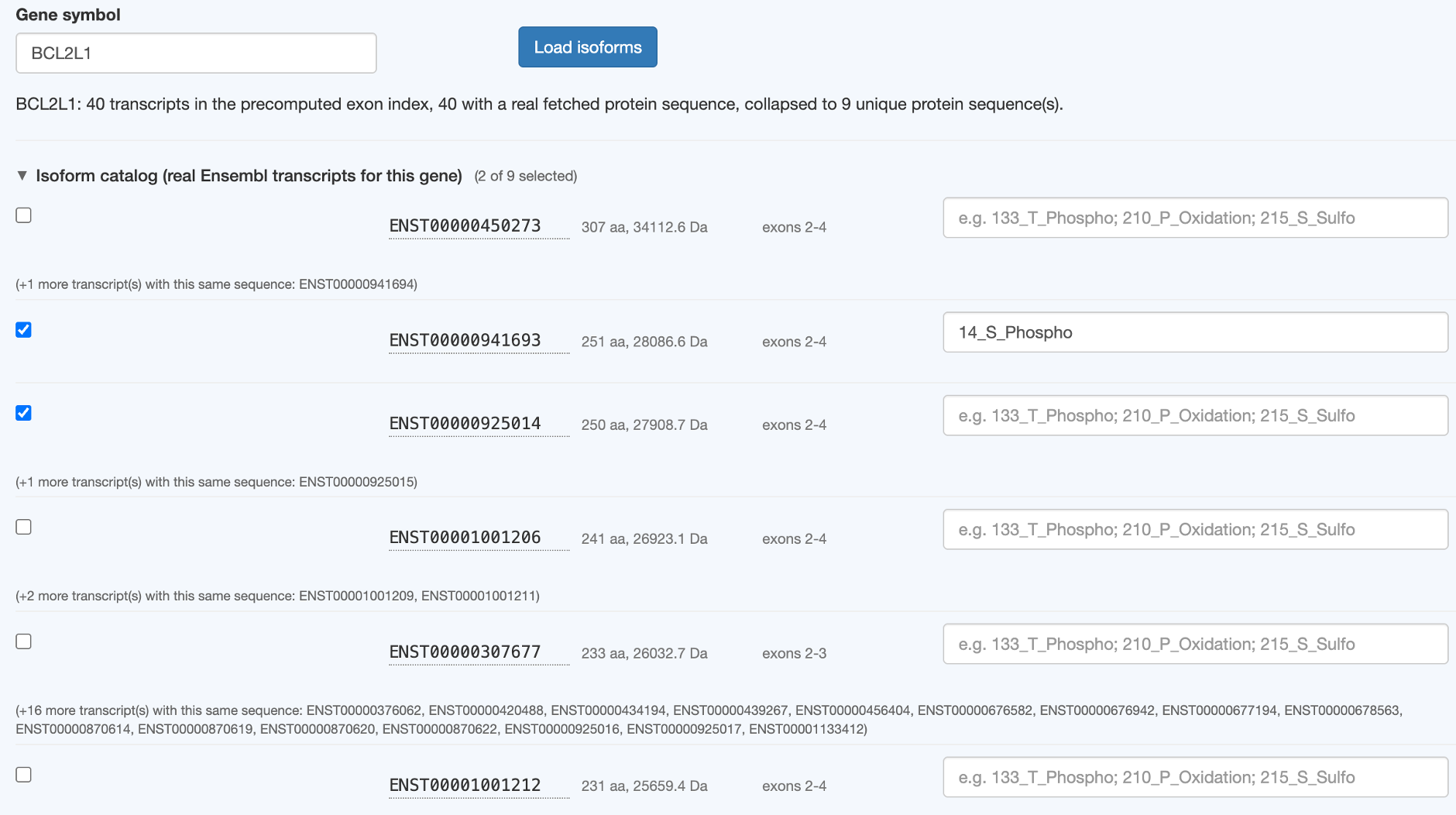
Type a HGNC gene symbol and click Load isoforms:
BCL2L1
This looks the gene up in the precomputed genome-wide exon index, then fetches each transcript's real translated protein sequence from Ensembl REST (cached to disk after the first fetch, so re-loading the same gene later is instant). Transcripts sharing an identical protein sequence (common — different transcripts of the same gene often differ only in UTRs) are collapsed to one representative row, with a note listing the others.
If top-down mode is active, isoforms outside the current min/max mass window are hidden from the list entirely (with a count of how many were hidden) — they can't be selected since they'd fall outside your instrument's usable range anyway.
The isoform catalog
Collapsed by default after a load (a long isoform list otherwise forces scrolling past a list you're already done picking from). Each row has:
- A checkbox — checking it adds this isoform to the comparison
- The transcript ID (hover it to see the full sequence with residue-position numbering, useful for writing a PTM spec — see below)
- Length and mass
- Which exons it contains
- A PTM spec text box (see PTM specification syntax)
The result proteoform table
Every checked isoform — plus one extra row for each valid PTM combination you specified — appears here with its computed mass:
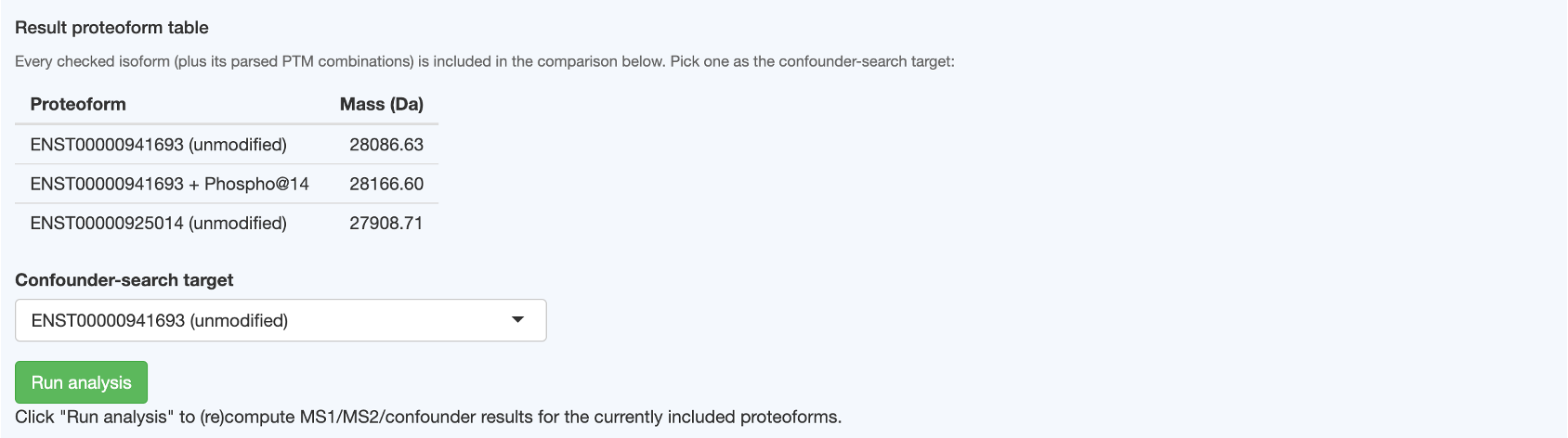
Pick one row as the confounder-search target (the dropdown just above Run analysis), then click Run analysis. See Section 1 and Section 2 for what happens next.
Middle-down mode
If MS strategy is set to Middle-down, a Select peptides... button appears once you've checked at least one proteoform — see Middle-down mode: the peptide candidate picker.